
Vital BizForm
How can I import client and company information from Vital CRM to BizForm?
*Note:
1. This function is only for simultaneous users of Vital CRM and Vital BizForm.
2. Users of the old Vital CRM version should link account to the Account Center.
After setting up settings, users can concatenate BizForm with the API in the CRM system, allowing the client/company/opportunity information to be imported all at once.
STEP 1: Connect to Vital CRM
1. Enter the CRM system, go to Settings > System > Service Information, and copy the Identifier.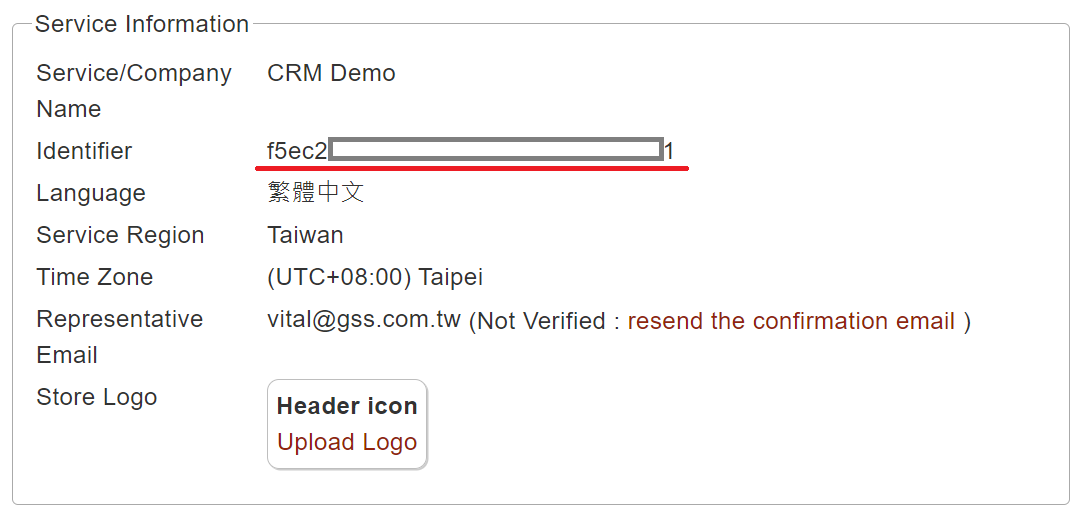
*Only the CRM admin can have access to the Identifier code. If you are not an admin, copy the URL link instead.

2. Return to BizForm. Go to Company > API Connection > [+New API] in the top right. Enter the API name and paste the Identifier, then select [Confirm].
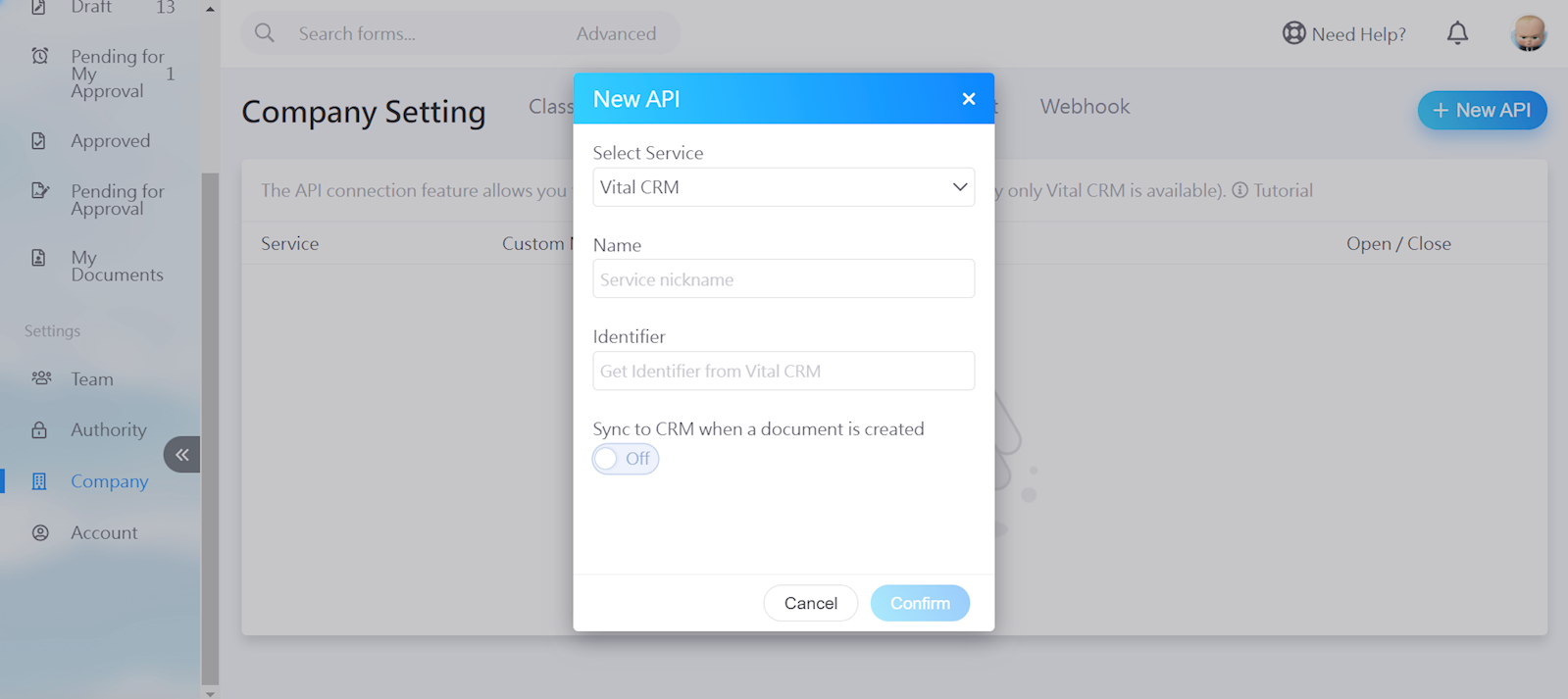
3. Once finished, confirm that the API is open. (You may choose to close it when not needed)

STEP 2: Set up form
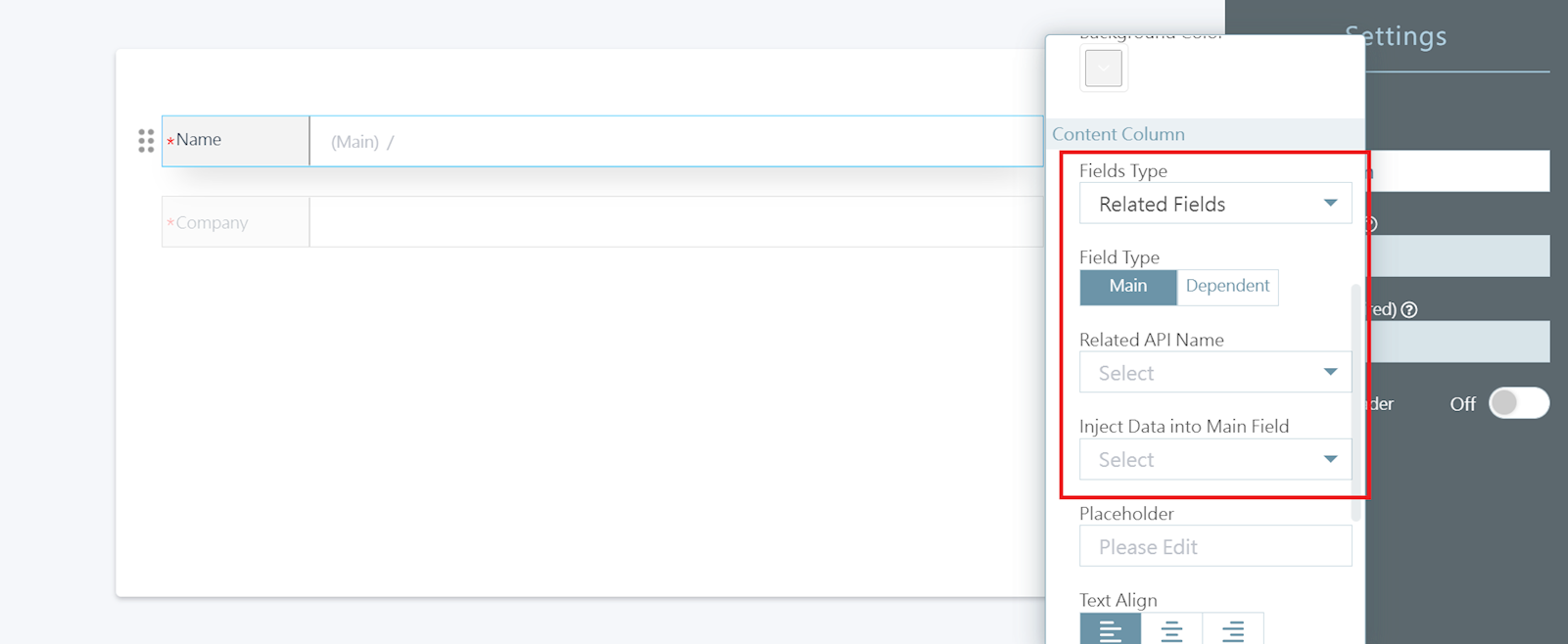
Select [+New Form] to set up the CRM client, company, or opportunities in the form.1. Main field: Select [Related fields] in the "Fields type". Select [Main] in "Field type" and select the API name in "Related API name". Then, choose the date you wish to inject into the Main Field.
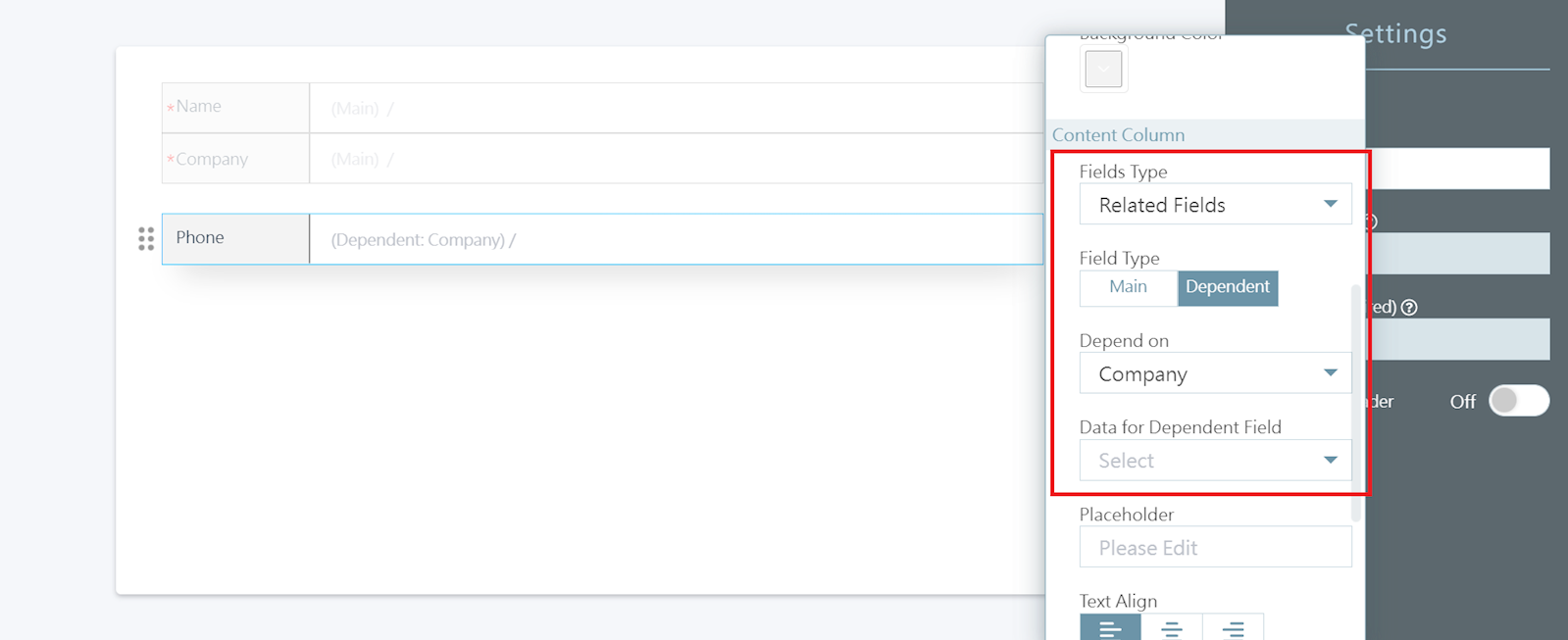
2. Dependent field: Select the other fields to include in the form, such as telephone, address, email, client number, company number, etc. The system will fetch the data according to the name of the field used in the CRM system.
*Don't forget to save your changes!
STEP 3: Query information, fetch data
When entering key words into the field, the system will fetch the data from the CRM system.*Note: The client, company, and opportunity information permission settings correspond with that of the CRM system. If you cannot find certain information, it indicates that the information does not have access authority. Please inquire the CRM system admin regarding the permission settings.
https://faq.vitalyun.com/EN/BizForm#2954