
Vital GL
Initial setting process
With its multi-company book design, GL enables you to record the accountings of more than one company using one system.
Add new company book
Path: [Maintenance] > [Company setting]Instructions: Add and enter the basic information of the company. Select [EAS sample] in the "Select company" column, then save.
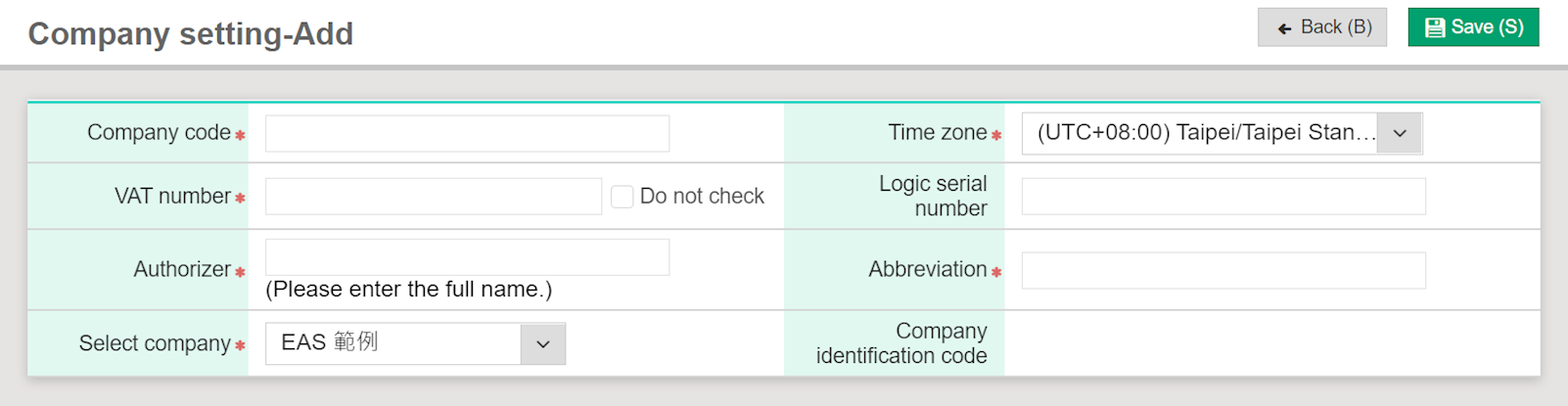
Company book entry
Path: Switch companyInstructions: After selecting company, click [Confirm]. The company book name in the top right corner will also be changed.
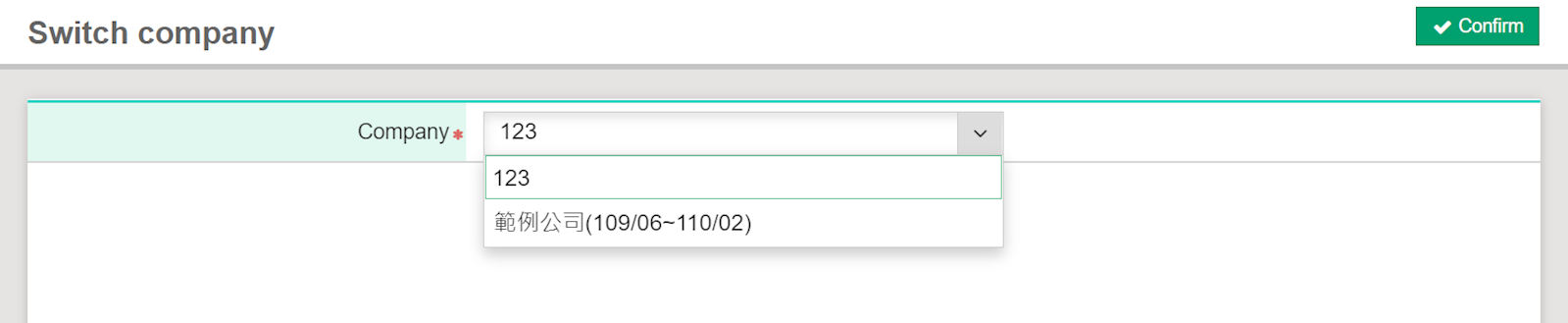
Initial bookbuilding-Getting started
If the system default accounts are used, please refer to the following steps to set up the system.
i. Define the voucher input interface
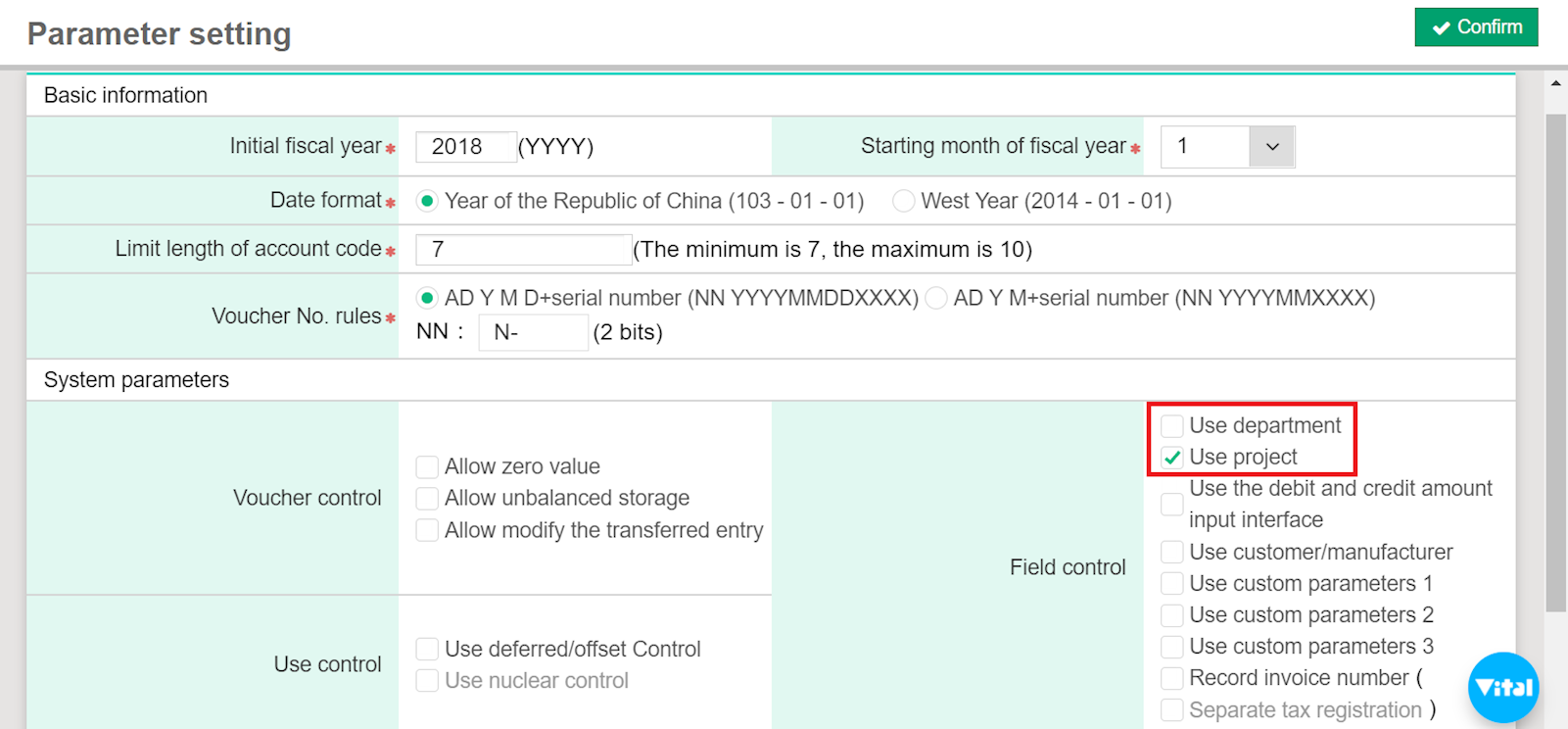
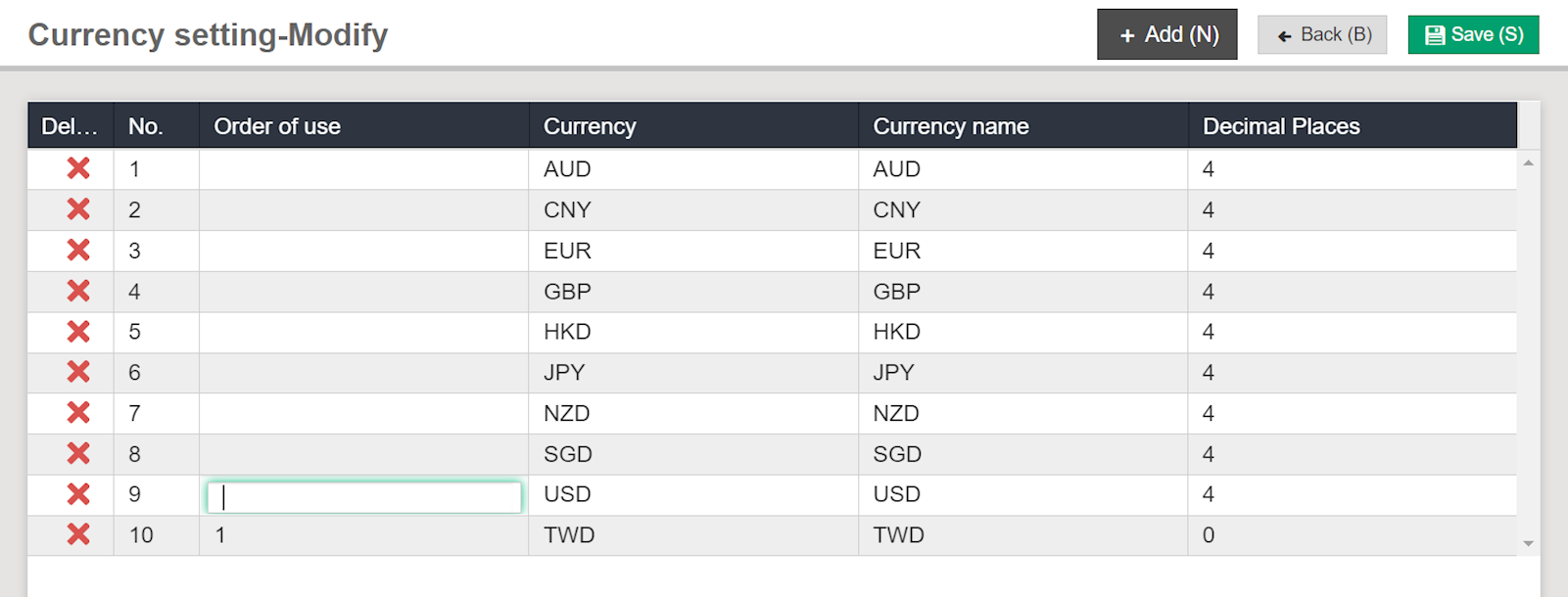
Path: [Maintenance] > [Parameter setting][Maintenance] > [Currency setting]
Instructions: Control the department, project, foreign currency fields according to your needs.
-Parameter setting
-Currency setting
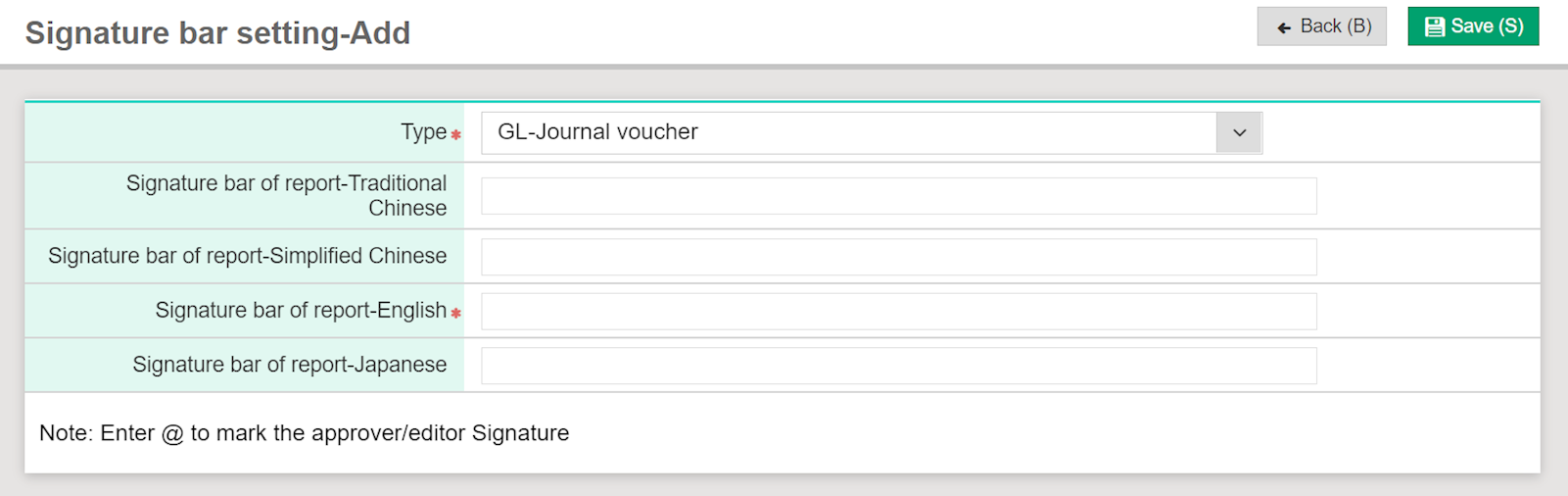
ii. Signature bar setting
Path: [Maintenance] > [Report setting] > [Signature bar setting]Instructions: As each company has different occupations, the settings can be modified.
iii. Initial account opening (Voucher import+Initial voucher input)
At the end of each accounting process, an income statement and balance sheet will be produced. Below are the steps for initial account opening.Decide on the starting date of using the GL system.
Decide whether or not to transfer the existing voucher information.
1. Initial voucher input
Set up "opening voucher," usually the balance sheet (BS) one day before using the system. If 12/31 BS is used, please note that accumulated profit and loss account should be used instead of the original current profit and loss. If 12/31 BS is not used, then no change is needed.
2. For example, if the system is converted in July, and the information from January to June are in the system or Excel file,
(1) Set the opening voucher as 12/31 BS of the year before (Function: Opening voucher input)
(2) Import vouchers of January to June from Excel (Function: Voucher import)
(2) Import vouchers of January to June from Excel (Function: Voucher import)
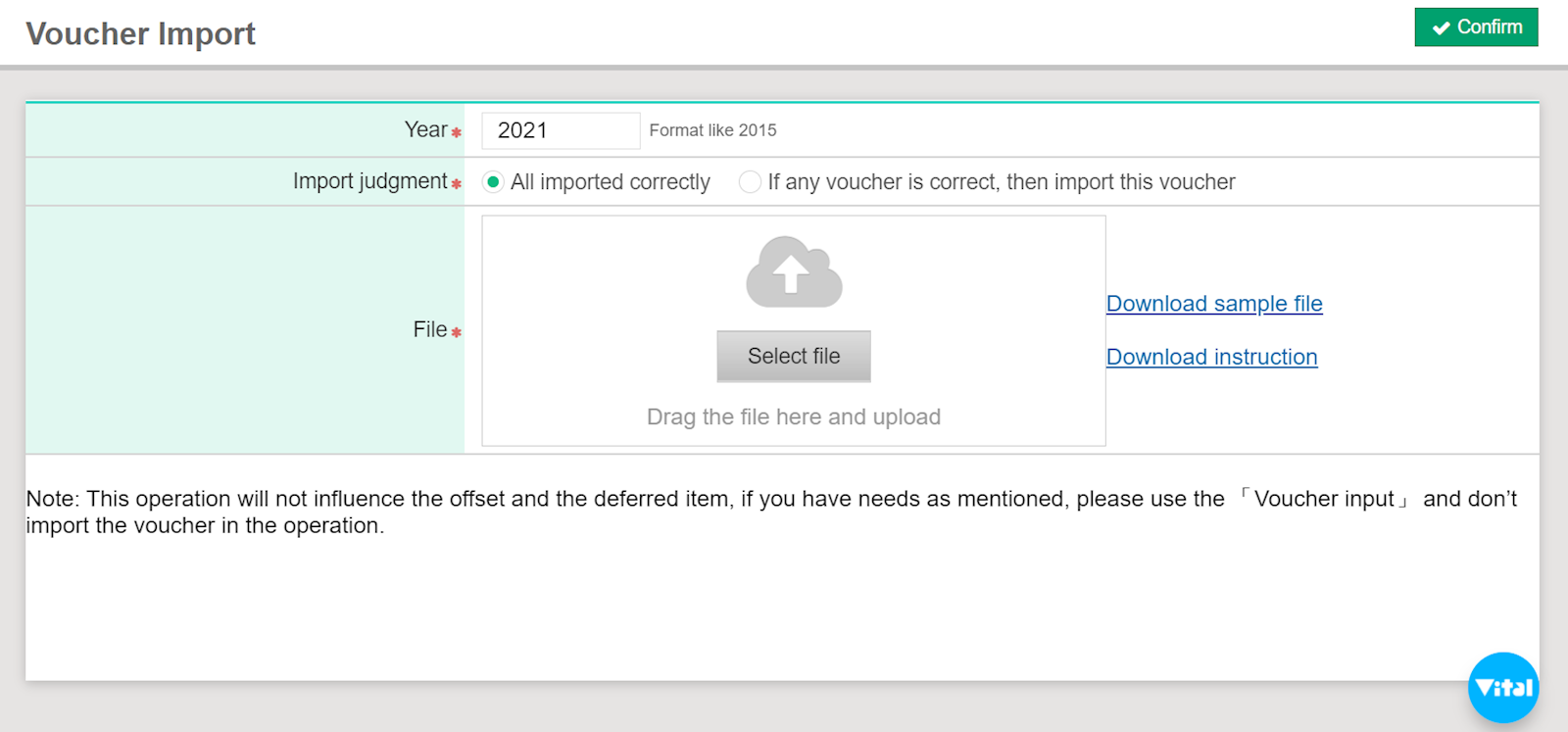
-Voucher import:
Path: [Daily work] > [Voucher import]
Instructions: Import existing Excel file into the system to reduce the burden of starting from scratch. Please skip this step if there are no vouchers to import.
-Initial account opening
Path: [Daily work] > [Opening voucher input]
Instructions: Choose the BS of the year before using the system as the opening voucher.
Initial bookbuilding-Advanced
Accounts can be replaced. Apart from the steps above, there are three additional steps to set up.
i. Replace account
Path: [Maintenance] > [Account information] > [Third grade]
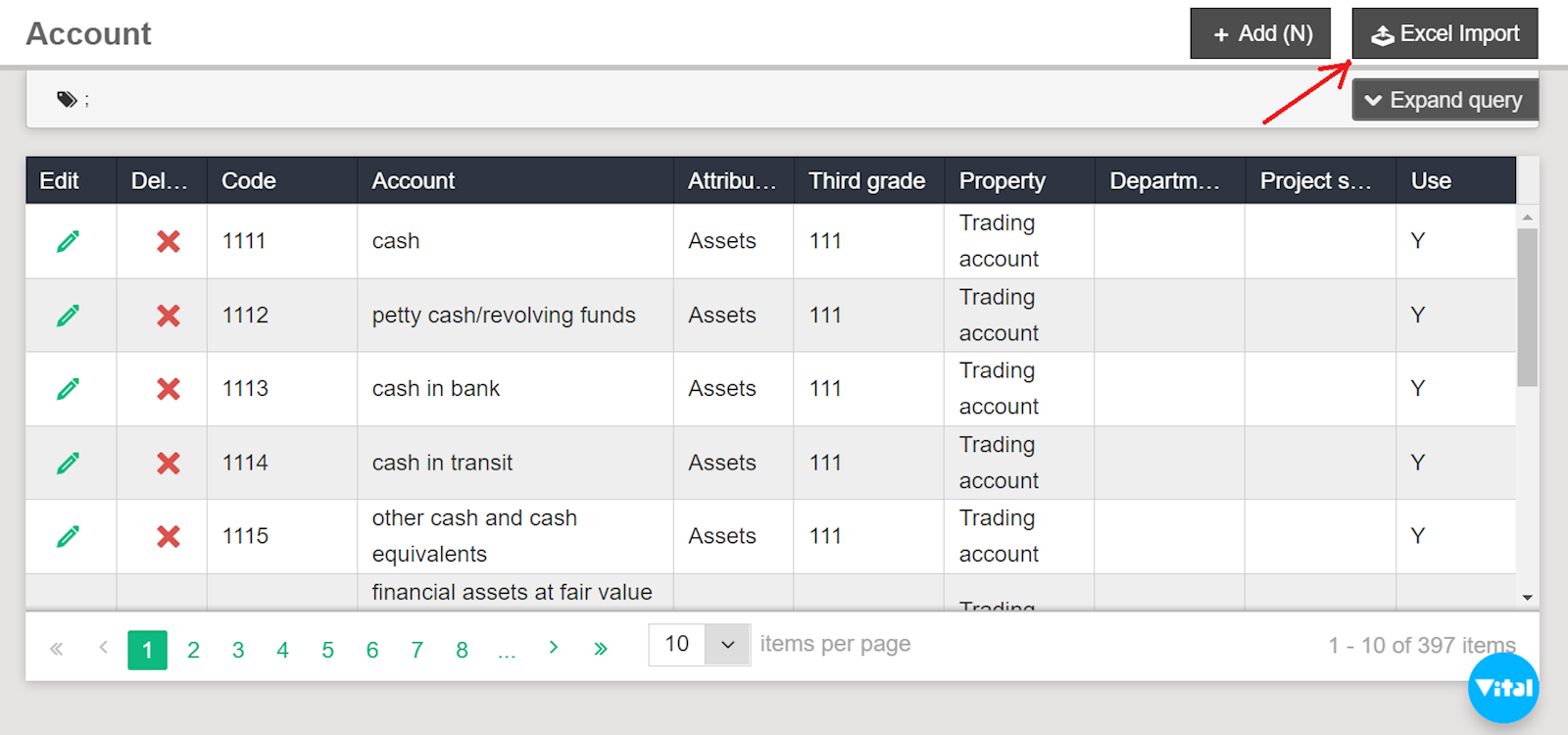
[Maintenance] > [Account information] > [Account]
Instructions: You can import account information from Excel. If there are no vouchers, you may delete and replace the whole batch; however, only adding and modifying accounts are allowed once there are vouchers.
[Maintenance] > [Account information] > [Account]
Instructions: You can import account information from Excel. If there are no vouchers, you may delete and replace the whole batch; however, only adding and modifying accounts are allowed once there are vouchers.
ii. Agreed account settings
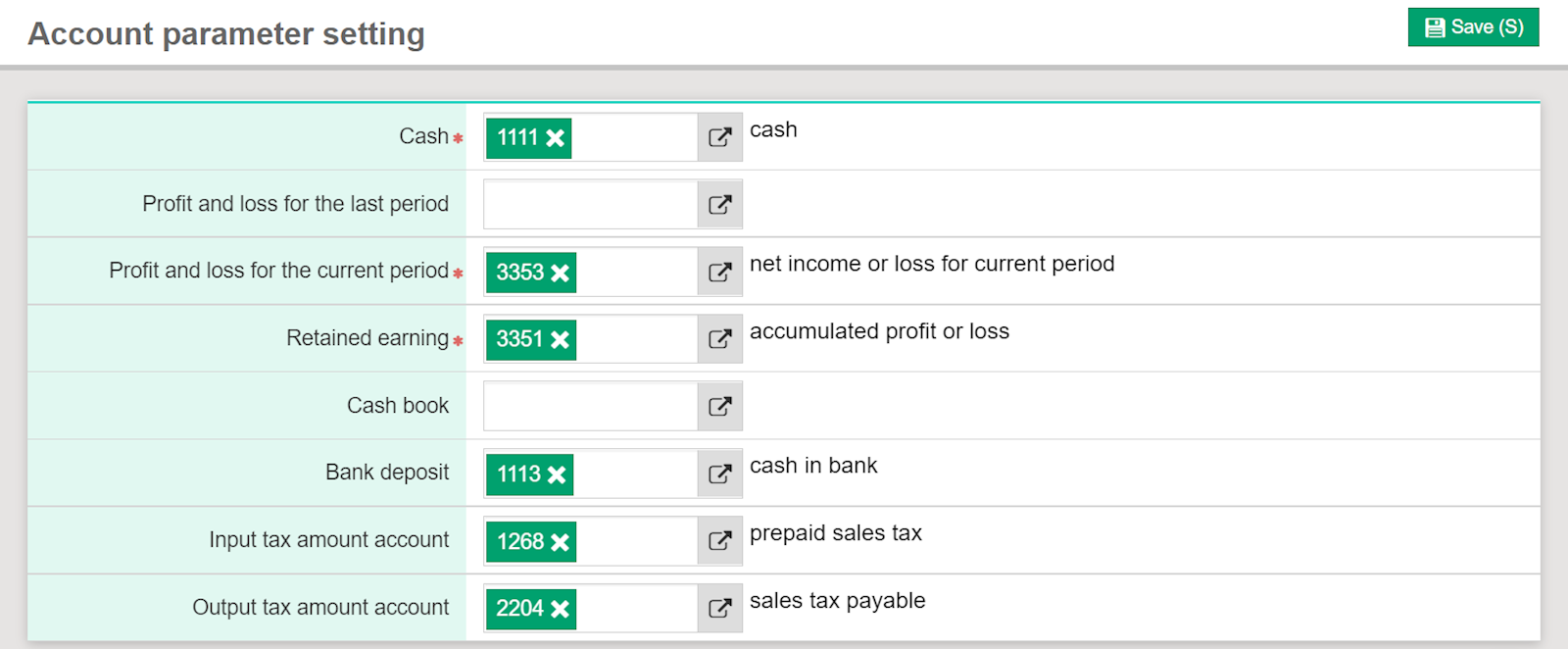
Path: [Maintenance] > [Account information] > [Account parameter setting]
Instructions: Please set the "cash," "profit and loss for the current period," and "retained earning" settings.
Instructions: Please set the "cash," "profit and loss for the current period," and "retained earning" settings.
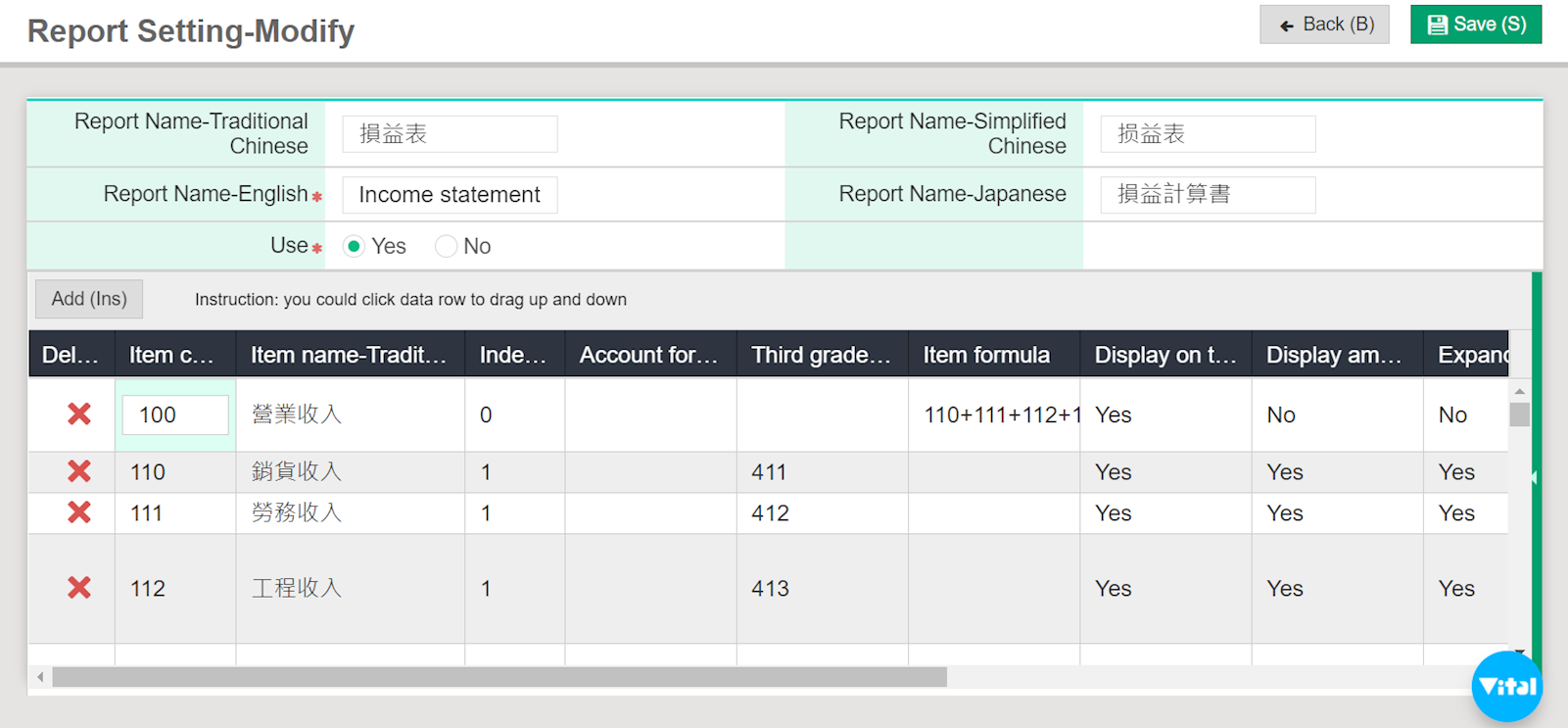
iii. Report settings
Path: [Maintenance] > [Report setting] > [Report setting]
Instructions: Advanced settings for income statement and balance sheet.
Instructions: Advanced settings for income statement and balance sheet.