How can I setup my Dashboard?
Dashboard - Personalized Setup
In the homepage, you can click on the tabs on the top left corner to switch between "News Feed" or "Dashboard."
*By default, upon entering the system, you will view contents under the "News Feed" tab, which is the original system homepage.

Personal dashboard data can be categorized into two major types:
- Tasks: Assigned for calendar items scheduled for this month.
- Customers, Companies, Potential Opportunities: Data with oneself assigned.
- Events/Activities: Data with oneself assigned and event/activity dates falling within this month.
- Opportunities: Data with oneself assigned and expected closing dates within this month.
Added Data:
- All types of data created by oneself (default to data created within this month).
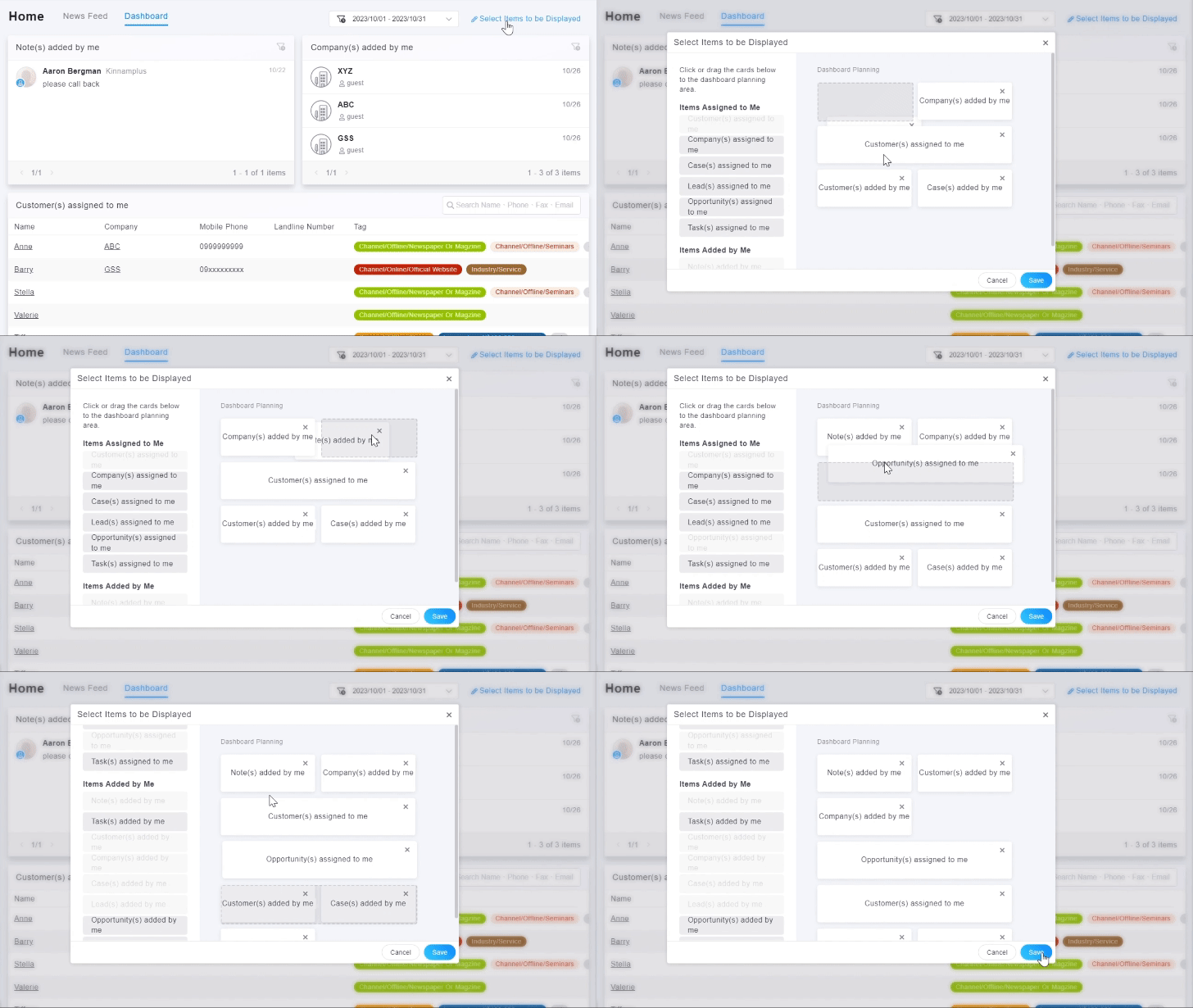
Within the dashboard function page, click the "Select Items to be Displayed" button at the upper right to open a window for managing items displayed. On the left side are all available items that you can click on or drag to the "Dashboard Planning" on the right to display the respective items on the dashboard. On the right side are the Dashboard Layout of the current screen. You can change the order by dragging the item, and you can hide an item by clicking the "×" on the right side. After editing, click "Save" to apply the settings.
Dashboard - Filtering and Searching
In the dashboard page, you can specify a time range in the upper right time field to filter the data content of the dashboard items:
Assigned Data:
- Tasks: Assigned for calendar items scheduled for this month and with event dates in the specified time range.
- Events/Activities: Data with oneself assigned and event/activity dates in the specified time range.
- Opportunities: Data with oneself assigned and expected closing dates within the specified time range.
Added Data:
- All types of data created by oneself within the specified time range.

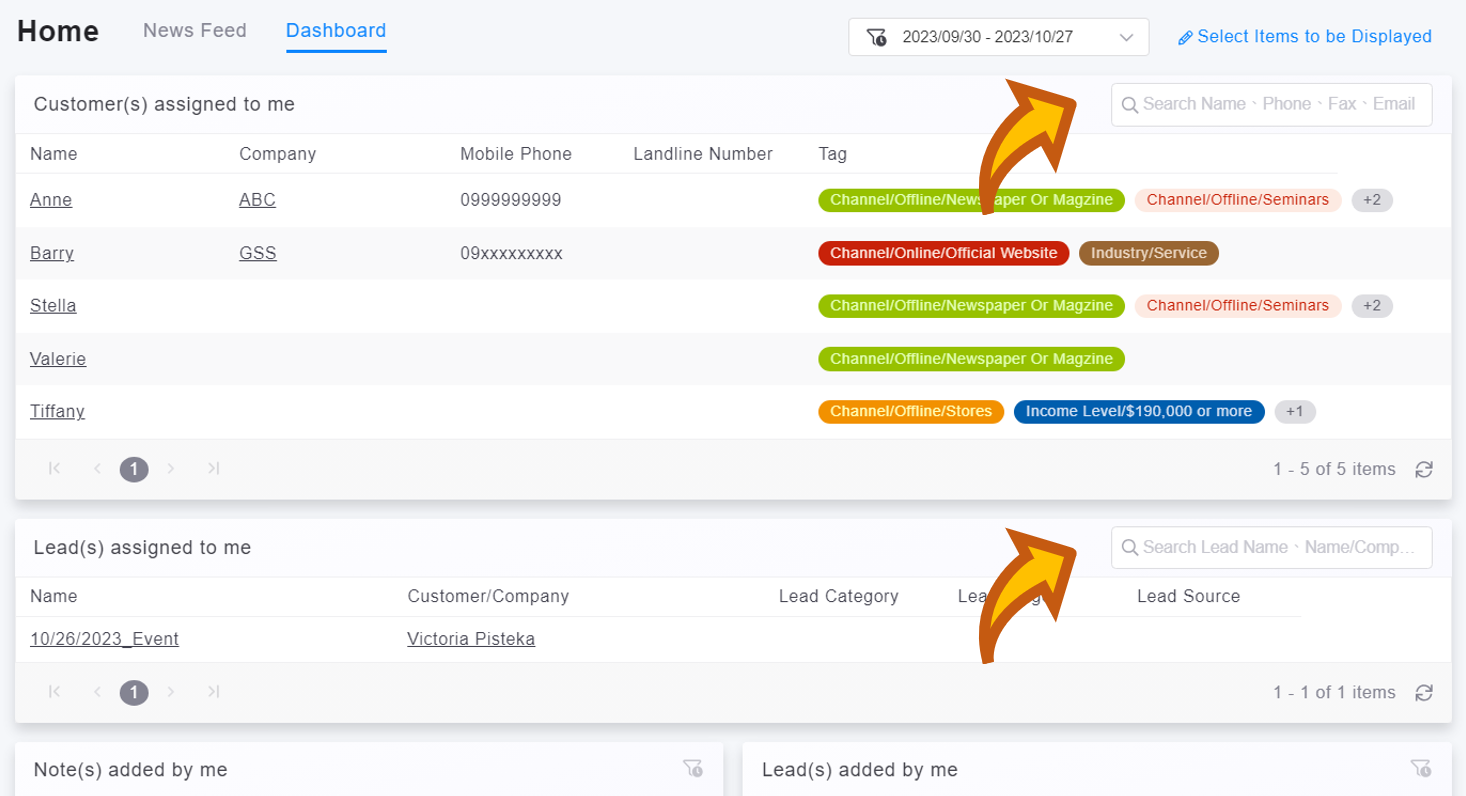
Dashboard allows you to specify a time range for content filtering. For the item related to "Assigned Customers, Companies, Events/Activities, Potential Opportunities, and Opportunities," there will be a search bar in the upper right. You can enter keywords to search.
The following are the fields for keyword searches for each type of data:
- Customers(s) assigned to me: Customer name, mobile, phone, email.
- Company(s) assigned to me: Company name, tax ID, phone.
- Event(s) assigned to me: Event/activity name.
- Lead(s) assigned to me: Leads name, customer name/company name.
- Opportunity(s) assigned to me: Opportunity name, customer name/company name.